
Transformations
Transformations are captured in worksheets (Sheets). These are organized in directories.
A single transformation requires sources and targets and uses a specific module.
Directories
Create new folders in the Explorer under Transformations via the context menu (New Folder). See Navigation Tree.
Worksheets
Transformations are grouped in worksheets. Worksheets are the smallest deployment unit.
A worksheet can contain as many elements as needed. Keep sheets lean and thematically focused: simultaneous editing by more than one developer is not possible.
Worksheets appear as tabs on the right. The tab label shows the environment name, the sheet name, and a leading * when the sheet is in edit mode. Several tabs can be open, but only one can be in edit mode.
Double-click the tab to hide the Explorer and maximize the work area. Double-click again to show the Explorer.
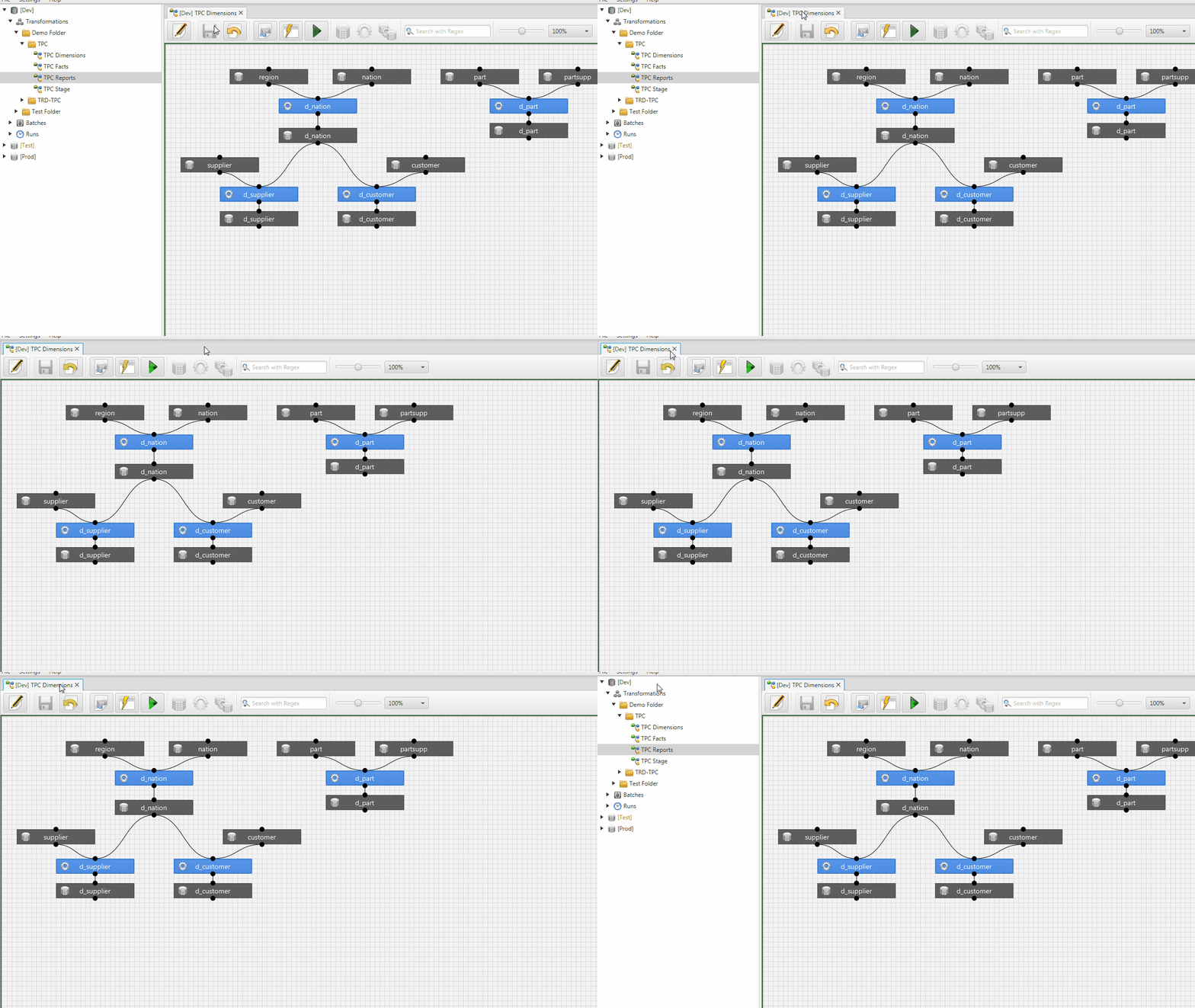
Tab context menu:
- Close: closes the selected worksheet
- Close Others: closes all other worksheets
- Close All: closes all worksheets

With the Explorer visible, the worksheet documentation appears below it. Edit it there or in a larger dialog (button in the Documentation title bar). The sheet must be in edit mode. Documentation is written in Markdown; see Markdown Documentation.
Button bar

- Edit (F4): starts edit mode
- Save (F9): saves changes
- Cancel/Reload (F5): discards changes since the last save, leaves edit mode, and reloads from the database
- Export SQL (F12): exports the sheet metadata to a file (for deployment or version control)
- Sheet Validation (F7): checks all elements on the sheet and shows the result in a dialog
- Run: sends an execution request for all actions on the sheet to the scheduler
- New Object: new object via drag and drop
- New Action: new transformation via drag and drop
- New Action/Object/Action: chain of source object, transformation, and target object via drag and drop
- Search: search within the worksheet
- Zoom: slider (0–200 %) or preset steps in the dropdown
- Username & timestamp: who last changed the sheet
Elements on the worksheet
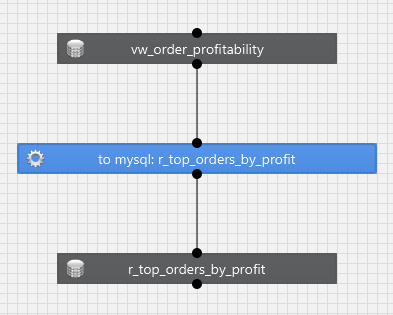
In edit mode, place transformations and objects by drag and drop. The data flow runs from top to bottom.
- Transformations are actions, usually SQL, executed by a module.
- Objects are sources and targets (tables, web services, files, and so on).
Draw links with the left mouse button from one connection point to the next; they snap when highlighted in green. Sources go from the bottom of the object to the top of the transformation, targets from the bottom of the transformation to the top of the target object. Remove Connection in the context menu drops a link.
Start an individual transformation with Run in its context menu. Selected elements can be copied (Ctrl+C), pasted (Ctrl+V), and deleted (Del), including across worksheets.
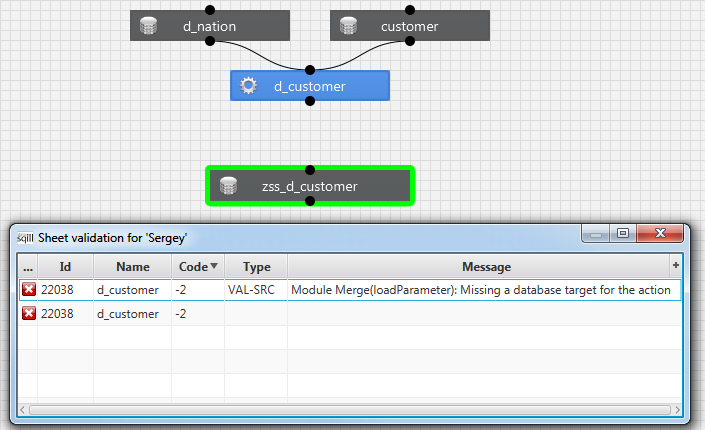
Validate and export a worksheet
Sheet Validation checks that the model and the objects in use are consistent. Sheets with errors must not be deployed: run control requires every object used in a transformation to appear as a source or target on the sheet.
Export SQL writes a script with the sheet metadata. The file can be loaded into another transformation database or stored in version control. See Deployment.
Objects
An object is a source or target of a transformation, for example a table, web service, file, or mailing list. Most modules expect at least one source and one target.
An object is defined by its type and properties such as connection, name, schema, or path.
At object level you decide whether links to other sheets count as dependencies. In Dependency, Wait means “wait for transformations on other sheets” and Ignore means “do not wait”. The setting has no effect within the same sheet; see Dependencies.
Create an object
Create an object by dragging the object icon onto the grid. Double-click opens the Edit Object dialog.
- ID (display only)
- Object type: depends on the installation; the default for database objects is Table or View
Fields for Table or View:
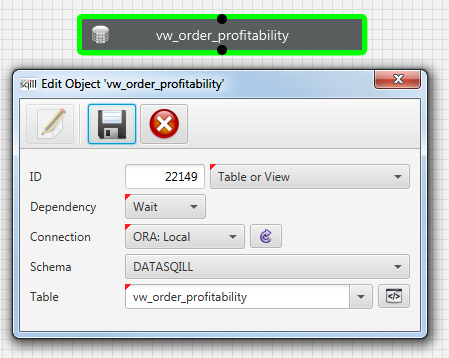
- Dependency: Wait or Ignore (see above)
- Connection: logical connection
- Schema: schema for that connection
- Table: table or view; the list can be filtered by typing
- Partition: optional partition
- Show Table Create Script: generates DDL and Select scripts for copying
- Refresh Objects: updates the object catalog and thus the table list
Refresh Objects
Refresh Objects reads the objects visible to datasqill from the configured schemas and writes them to the object catalog. Do this initially and after any transformation-relevant change to the database objects.
DDL script
Show Table Create Script formats the generated scripts in a text box (copy with Ctrl+C or the context menu):
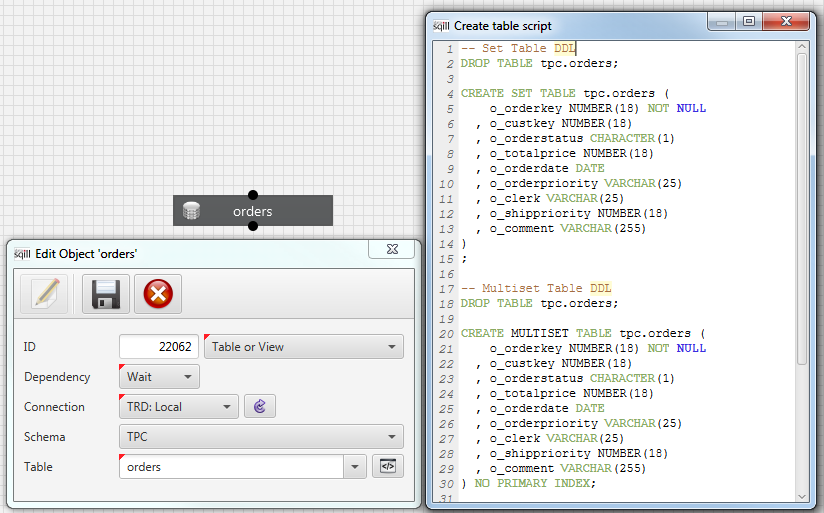
- simple Create Table
- Create Table as a versioned table with generation statement
- table comments
- simple Select
The code generated is based on a Freemarker template. This template is defined in the table vv_sqts_config_global:
| Type | config_key1 | config_key2 | config_key3 | config_key4 |
|---|---|---|---|---|
| Export | VARIABLE | Template | TABLE_SCRIPT | EXPORT |
There are two sets of variables. The first set provides the variables listed below. Another set is for the base table if it is an object that is based on exactly one other object (for views that have exactly one table as source). In this set, all variables have the prefix BASE_. If there is exactly one object that the object is based on, this set is filled with the information of the base table. Otherwise, this set corresponds to the first set.
The following variables are made available in Freemarker:
| Variable | Data Type | Meaning |
|---|---|---|
| DATABASE_ID | Number | The connection of the object |
| SCHEMA_NAME | String | The schema name |
| OBJECT_NAME | String | The object name |
| OBJECT_TYPE | String | The object type. Currently either TABLE or VIEW |
| PK_NAME | String | The primary key name |
| OBJECT_COMMENT | String | The object comment |
| SCHEMA_NAME_LOWER | String | Currently not supported |
| OBJECT_NAME_LOWER | String | Currently not supported |
| columns | List | List of columns of the object |
Each object has a list of names and their values. The following names are available:
| Name | Data Type | Meaning |
|---|---|---|
| DATABASE_ID | Number | The connection of the object |
| SCHEMA_NAME | String | The schema name |
| OBJECT_NAME | String | The object name |
| COLUMN_NAME | String | The column name |
| COLUMN_POSITION | Number | Position of the column within the object |
| COLUMN_TYPE | Number | The data type |
| COLUMN_PK_POSITION | Number | If not null, position in primary key |
| COLUMN_COMMENT | String | The column comment |
| COLUMN_IS_NULLABLE | CHAR | "Y" nulls allowed, "N" not |
| COLUMN_SOURCE_TYPE | String | The data type as specified in the source system |
| SCHEMA_NAME_LOWER | String | Currently not supported |
| OBJECT_NAME_LOWER | String | Currently not supported |
| COLUMN_NAME_LOWER | String | Currently not supported |
Using variables in Freemarker
An example to provide the full name of the object name for further use:
[#if SCHEMA_NAME?has_content]
  [#assign schema=SCHEMA_NAME?lower_case + "."]
[#else]
  [#assign schema=""]
[/#if]
[#assign object=OBJECT_NAME?lower_case]
[#assign name=schema+object]
Analogous for the base object:
[#if BASE_SCHEMA_NAME?has_content]
  [#assign base_schema=BASE_SCHEMA_NAME?lower_case + "."]
[#else]
  [#assign base_schema=""]
[/#if]
[#assign base_object=BASE_OBJECT_NAME?lower_case]
[#assign base_name=base_schema + base_object]
Recognize versioned tables:
[#-- base_tv and base_nv are placeholder for the versioned / non versioned table name with schema --]
[#assign base_tv=base_schema +base_object]
[#assign base_nv=base_schema +base_object]
[#if base_name?starts_with("tv_")]
  [#assign base_nv=base_schema + base_object[3..]]
[#else]
  [#assign base_tv=base_schema + "tv_" + base_object]
[/#if]
Recognize columns that do not belong to historization / versioning
[#-- list of historize columns --]
[#assign hist_cols = ["upd_by", "ins_by", "is_latest_period","last_changed_dt", "valid_from_dt", "invalid_from_dt", "is_current_and_active", "is_deleted"]]
[#-- generate the list data_cols with all columns which are not sqdv columns --]
[#assign data_cols = []]
[#list baseColumns as col]
  [#if !(col["COLUMN_NAME"]?lower_case?starts_with("sqdv_")) && !hist_cols?seq_contains(col["COLUMN_NAME"]?lower_case)]
    [#assign data_cols += [col] ]
  [/#if]
[/#list]
Filter out columns from primary key columns that are not part of versioning
[#-- generate the list pkCols with all primary key columns which are not sqdv columns --]
[#assign pkCols = []]
[#list baseColumns as col]
  [#if col["COLUMN_PK_POSITION"]?? && !(col["COLUMN_NAME"]?lower_case?starts_with("sqdv_")) && !hist_cols?seq_contains(col["COLUMN_NAME"]?lower_case)]
    [#assign pkCols += [col] ]
  [/#if]
[/#list]
[#assign pkCols = pkCols?sort_by("COLUMN_PK_POSITION")]
A function to prepare column types for the target environment
[#function toTargetType columType]
  [#local colType = columType?upper_case]
  [#local pos = colType?index_of("(")]
  [#if pos != -1]
    [#local colTypeFirst = colType?substring(0, pos)?trim]
    [#local colTypeLast = colType?substring(pos)?trim]
    [#local colTypeLast = colTypeLast?replace(" CHAR", "")?replace(" BYTE", "")]
  [#else]
    [#local colTypeFirst = colType?trim]
    [#local colTypeLast = ""]
  [/#if]
  [#if ["BIGINT", "INTEGER", "SMALLINT", "TINYINT"]?seq_contains(colTypeFirst)]
    [#local colTypeFirst = "INT"]
  [#elseif ["TIMESTAMP", "TIMESTAMP WITHOUT TIME ZONE"]?seq_contains(colTypeFirst)]
    [#local colTypeFirst = "DATETIME"]
  [#elseif ["VARCHAR2", "CHARACTER VARYING"]?seq_contains(colTypeFirst)]
    [#local colTypeFirst = "VARCHAR"]
  [#elseif ["CHARACTER"]?seq_contains(colTypeFirst)]
    [#local colTypeFirst = "CHAR"]
  [#elseif ["NUMBER", "NUMERIC"]?seq_contains(colTypeFirst) && colTypeLast=""]
    [#local colTypeFirst = "DECIMAL(15,2)"]
  [#elseif ["NUMBER", "NUMERIC"]?seq_contains(colTypeFirst)]
    [#local colTypeFirst = "DECIMAL"]
  [#elseif ["CLOB", "TEXT"]?seq_contains(colTypeFirst)]
    [#local colTypeFirst = "VARCHAR(MAX)"]
    [#local colTypeLast = ""]
  [/#if]
  [#return colTypeFirst + colTypeLast]
[/#function]
Output of the versioned table for non-SQDV versioned tables
DROP TABLE IF EXISTS ${base_tv};

-- Versioned table with data types of target database
CREATE TABLE ${base_tv} (
    [#list data_cols as col]${col["COLUMN_NAME"]?lower_case} ${toTargetType(col["COLUMN_TYPE"])}[#if col["COLUMN_IS_NULLABLE"] == 'N'] NOT NULL[/#if][#sep]
  , [/#list]
  , is_latest_period CHAR(1) NOT NULL
  , is_current_and_active CHAR(1) NOT NULL
  , is_deleted CHAR(1) NOT NULL
  , last_changed_dt DATETIME NOT NULL
  , valid_from_dt DATETIME NOT NULL
  , invalid_from_dt DATETIME NOT NULL [#if pkCols?size > 0]
  , PRIMARY KEY([#list pkCols as pk]${pk["COLUMN_NAME"]?lower_case}, [/#list]invalid_from_dt)[/#if]
);
Transformation
A transformation holds the SQL and is extended at runtime by the selected module. Typical modules are Insert from Select and Upsert/Merge.
The developer might enter:
SELECT SYSDATE AS zeitpunkt_der_reporterstellung
     , TO_CHAR(TRUNC(order_date,'MM'), 'YYYY.MM') AS monat_der_bestellungen
     , COUNT(*)  AS anzahl_der_bestellungen
     , SUM(order_total) AS umsatzsumme_der_bestellungen
     , ROUND(AVG(order_total),1) AS average_umsatz_pro_bestellung
  FROM oe.orders
 GROUP BY TRUNC(order_date,'MM')
 ORDER BY monat_der_bestellungen;
Insert from Select turns that into the following at runtime:
INSERT INTO oe.order_report(
       zeitpunkt_der_reporterstellung
     , monat_der_bestellungen
     , anzahl_der_bestellungen
     , umsatzsumme_der_bestellungen
     , average_umsatz_pro_bestellung)
SELECT SYSDATE AS zeitpunkt_der_reporterstellung
     , TO_CHAR(TRUNC(order_date,'MM'), 'YYYY.MM') AS monat_der_bestellungen
     , COUNT(*)  AS anzahl_der_bestellungen
     , SUM(order_total) AS umsatzsumme_der_bestellungen
     , ROUND(AVG(order_total),1) AS average_umsatz_pro_bestellung
  FROM oe.orders
 GROUP BY TRUNC(order_date,'MM')
 ORDER BY monat_der_bestellungen
Create a transformation
Create a transformation by dragging the transformation icon (gear) onto the grid. Often you place the whole chain source–transformation–target at once. Double-click opens the Edit Action dialog: parameters, base query, and validation.
Top left:
- ID (display only)
- Name
- Type: the module; available types depend on the installation, see Modules
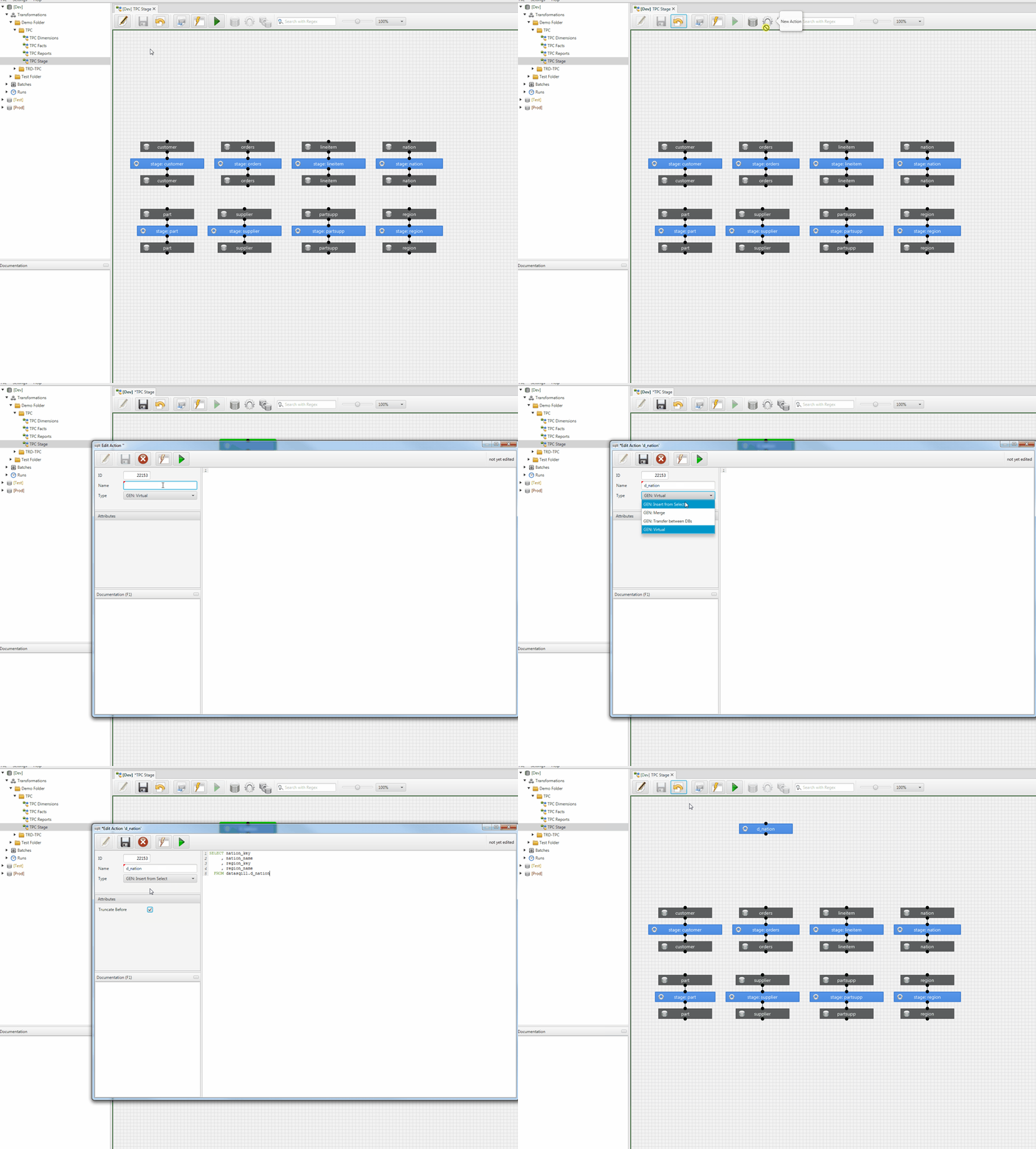
Further parameters come from the selected module and are described in tooltips. Documentation stores a Markdown description, as on the worksheet; see Markdown Documentation. Double-click the Action or Validate tab to hide or show the parameter and documentation pane.
SQL
The Action tab holds the base query. The editor provides syntax highlighting and Reformat SQL in the context menu. Use the SQL supported by the transformation database. Objects in the query must be schema-qualified.
Module
The Type field lists the modules registered in the environment. At runtime the module extends the base query, for example with the Insert part for Insert from Select.
For a module to appear as a type it must be implemented, installed, and registered in the transformation database. Parameters and tooltips in the Edit Action dialog come from the module definition.
Validation
The Validate tab sends the base query to the module’s validate function:
- the query is turned into the effective statement
- query and worksheet model are checked for consistency
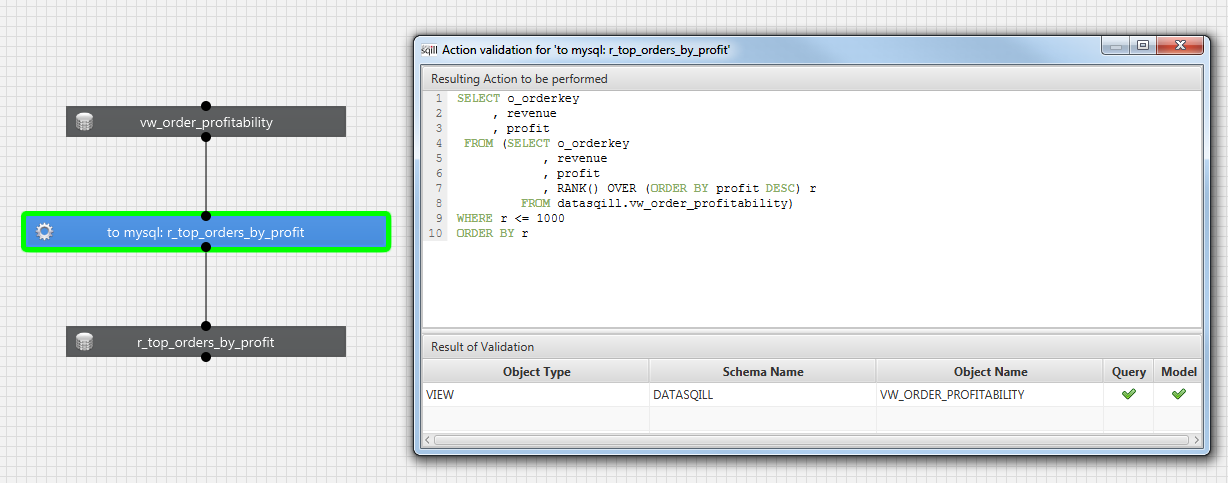
Resulting Action to be performed shows the SQL that a run will execute. That statement is built only at runtime and is not persisted.
Result of Validation compares objects used in the query with the sources and targets modeled on the sheet. Every object used in the query should appear in the model, otherwise run control cannot see the dependency.