
Markdown Documentation
Sheets, transformations (actions), projects, and artifacts can carry documentation written in Markdown. The GUI shows the rendered result and opens a split editor for changes: Markdown source on one side and a live preview on the other.
Where documentation is used
- Worksheets (Sheets): With the Explorer visible, the sheet documentation appears below it. See Transformations.
- Transformations (Actions): The Documentation area in the Edit Action dialog holds a description of that transformation.
- Projects: The project description uses the same Markdown viewer and editor.
- Artifacts: The artifact description uses the same Markdown viewer and editor.
- Deployment hints: A project can also store a deployment hint in Markdown.
The documentation text is stored with the entity. When you deploy a sheet, project, or artifact, the documentation travels with it.
Viewing and editing
The documentation pane shows the rendered Markdown below the Explorer. The button in the Documentation title bar (Show or Edit) opens a larger dialog.
The dialog has two panes:
- the Markdown source (syntax-highlighted editor)
- a live preview that updates while you type
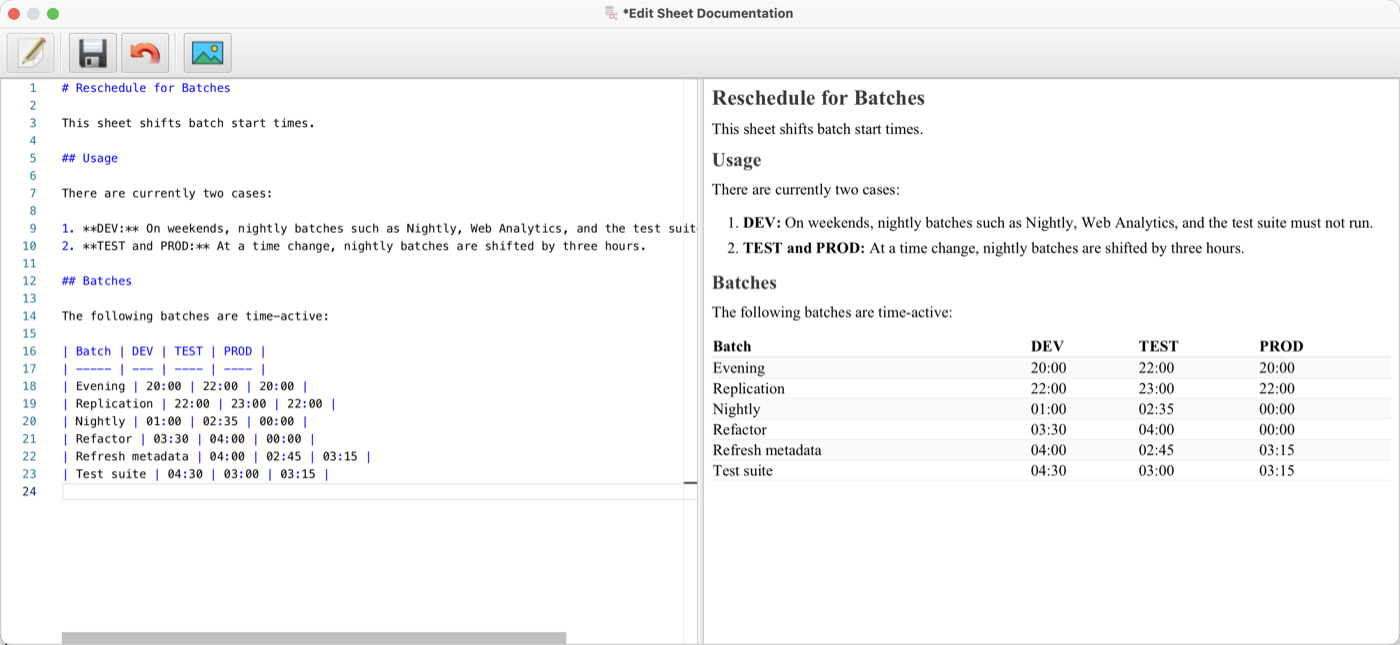
This is not a word-processor view. You edit Markdown source and see the rendered result beside it. The toolbar provides edit, save, and add image.
Save writes the text to the entity. Cancel discards the dialog buffer and leaves the stored documentation unchanged. The sheet, project, or artifact must be in edit mode before documentation can be saved.
In read-only mode only the rendered preview is shown.
Formatting
The GUI parses CommonMark Markdown and adds GitHub-style tables, strikethrough, and autolinks.
Typical markup:
| Markup | Result |
|---|---|
# … ###### |
Headings |
**bold** or __bold__ |
Bold |
*italic* or _italic_ |
Italic |
~~text~~ |
Strikethrough |
- or * |
Unordered list |
1. 2. |
Ordered list |
`code` |
Inline code |
> |
Block quote |
--- |
Horizontal rule |
Tables use a header row, a separator row, and data rows:
| Column A | Column B |
| :------- | :------- |
| Value    | Value    |
Nested lists work as in CommonMark: indent the nested items under the parent item.
Task lists, footnotes, and other extras outside CommonMark plus the extensions above are not rendered as special elements.
Links
Write a labeled link as [label](https://example.com). Bare http:// and https:// URLs in the text become links as well (autolink).
A click on an http:// or https:// link opens the system browser. Other URL schemes are not opened.
Images
The editor toolbar has an add image button. It inserts the selected file into the documentation text as an embedded image (stored inside the Markdown, not as a separate file). Embedded images are shown full width and centered.
Because the image data lives in the documentation text, the picture is saved and deployed together with the sheet, action, project, or artifact. Large images increase the size of that text.
You can also write a standard Markdown image  or an HTML img tag when the image is reachable by URL.
Code blocks
Fenced code blocks use three backticks or three tildes. Add a language tag for syntax highlighting:
```sql
SELECT id, name
  FROM customer
 WHERE active = 1;
```
The same fence works with ~~~sql … ~~~.
Highlighting is available for SQL and PL/SQL, Bash and shell sessions, Java, JavaScript, Python, PowerShell, Docker, C, C++, C#, Go, Ruby, R, CSS, HTML/XML (markup), AsciiDoc, and ASP.NET. A fence without a language tag is shown as plain preformatted text.
Mermaid diagrams
A fenced block with the language mermaid is rendered as a diagram:
```mermaid
graph TD
    Extract --> Transform --> Load
```
Supported diagram types include graph / flowchart, sequenceDiagram, classDiagram, stateDiagram / stateDiagram-v2, erDiagram, journey, gantt, pie, gitGraph, and requirementDiagram.
If the first statement is not a diagram type, the GUI treats the block as a top-down flowchart (graph TD). A first line that is not graph syntax becomes the diagram title, for example:
```mermaid
Nightly load
    Staging --> Core --> Mart
```
Search
When you search in a worksheet, matching text in the documentation is highlighted in the rendered preview.
Appearance
Rendered documentation uses the built-in stylesheet of the GUI. An environment can override that look with the configuration entry GUI / DOCU-VIEW / STYLESHEET (CSS). If that value is empty, the default stylesheet is used.